


Features available with Xmind.
Curated features for you to generate ideas, inspire creativity, and bring efficiency both in work and life.
New Illustrations
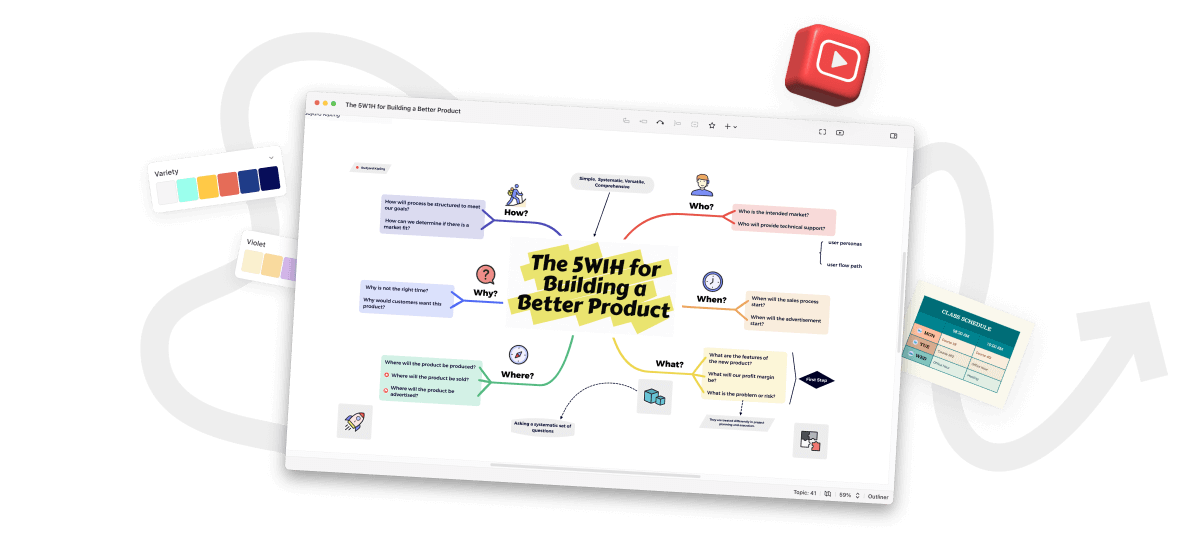
Featuring 310 AI original illustrations. Visualize concepts and information to make understanding easier.
Quickly Search for Illustrations
Enter illustration keywords and immediately witness related content surface, bursting with visual inspiration.
Rich Text Styles
Enjoy diverse text styles for partial text within one topic, emphasizing crucial information and improving readability.
Numbering
Skip the time-consuming manual labeling and choose your preferred numbering style, enabling effortless organization of your thoughts.
Task Tracking
Utilizing the inherent structural advantage of mind maps for task tracking, provide you a clear overview of the tasks.
New Illustrations
Featuring 310 AI original illustrations. Visualize concepts and information to make understanding easier.
Quickly Search for Illustrations
Enter illustration keywords and immediately witness related content surface, bursting with visual inspiration.
Rich Text Styles
Enjoy diverse text styles for partial text within one topic, emphasizing crucial information and improving readability.
Professionally-designed Structures
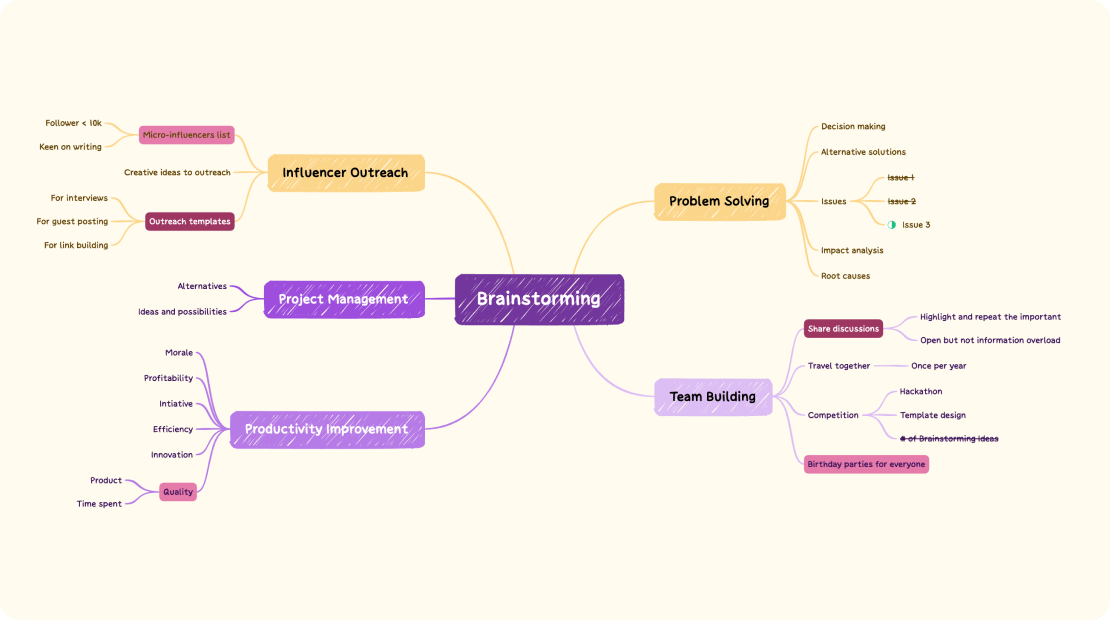
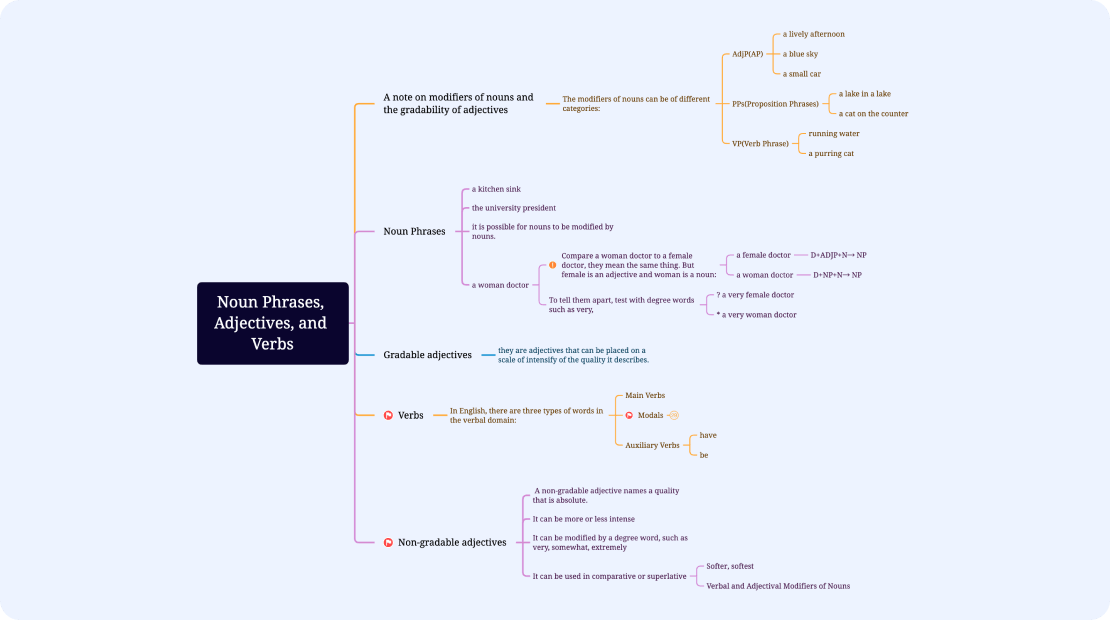
We offer more than traditional radial mind map structure for particular subjects. Empower your thoughts by using the right structure.
Mind Map
Logic Chart
Brace Map
Org Chart
Fishbone
Timeline
Tree Chart
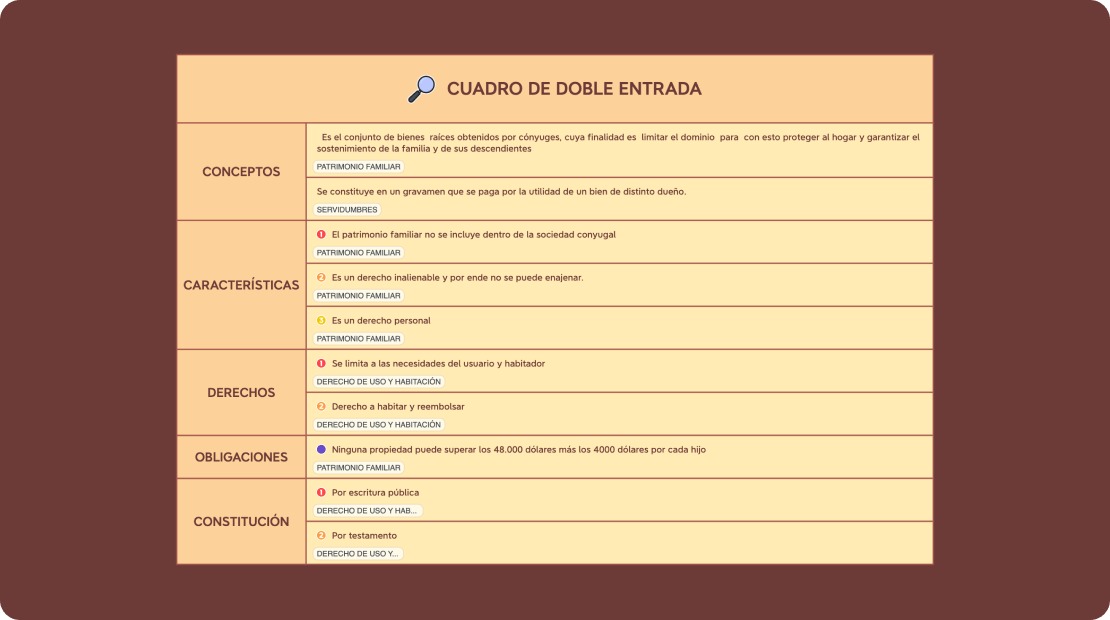
Tree Table
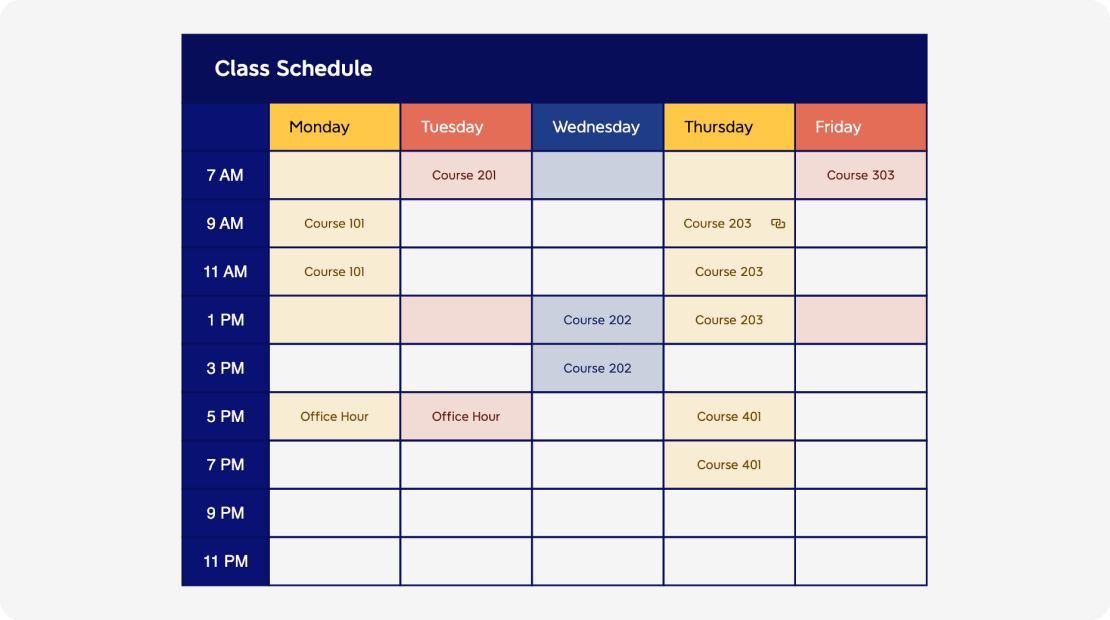
Matrix
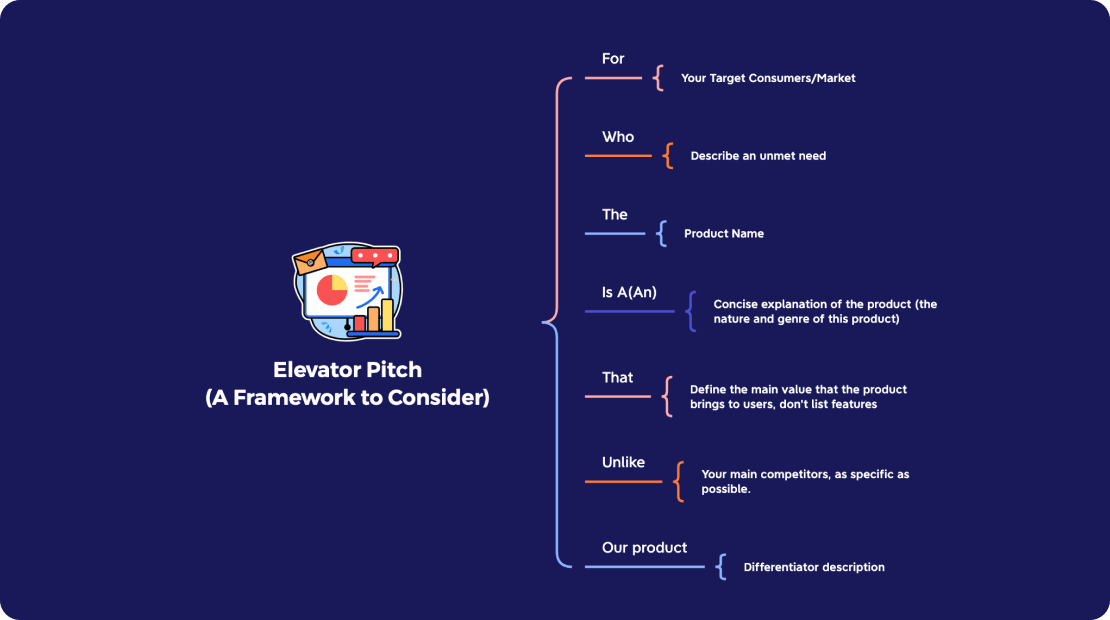
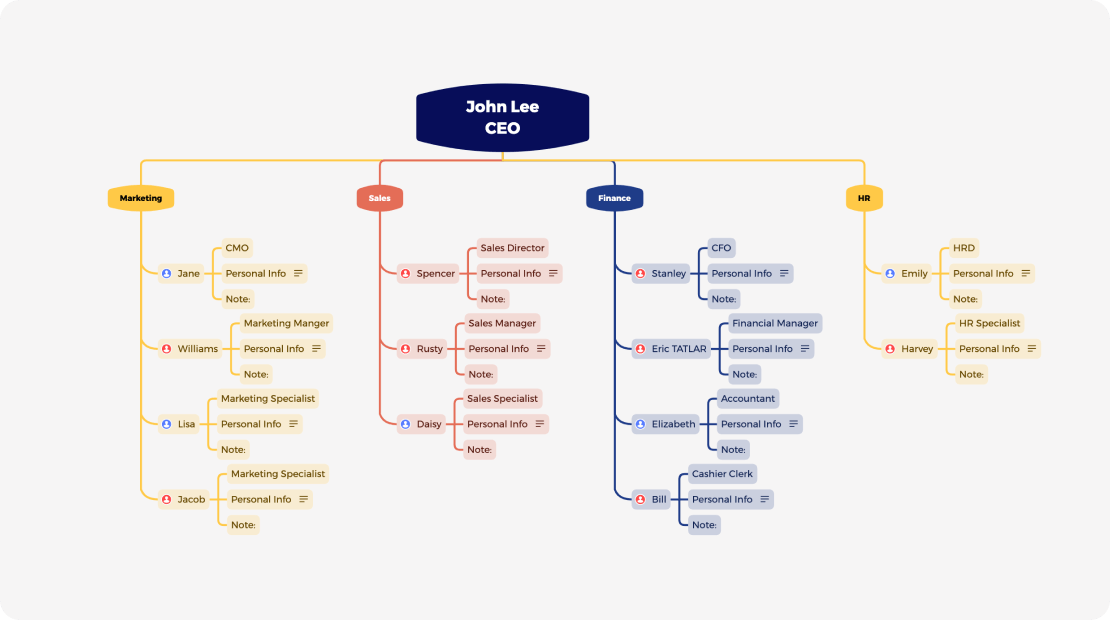
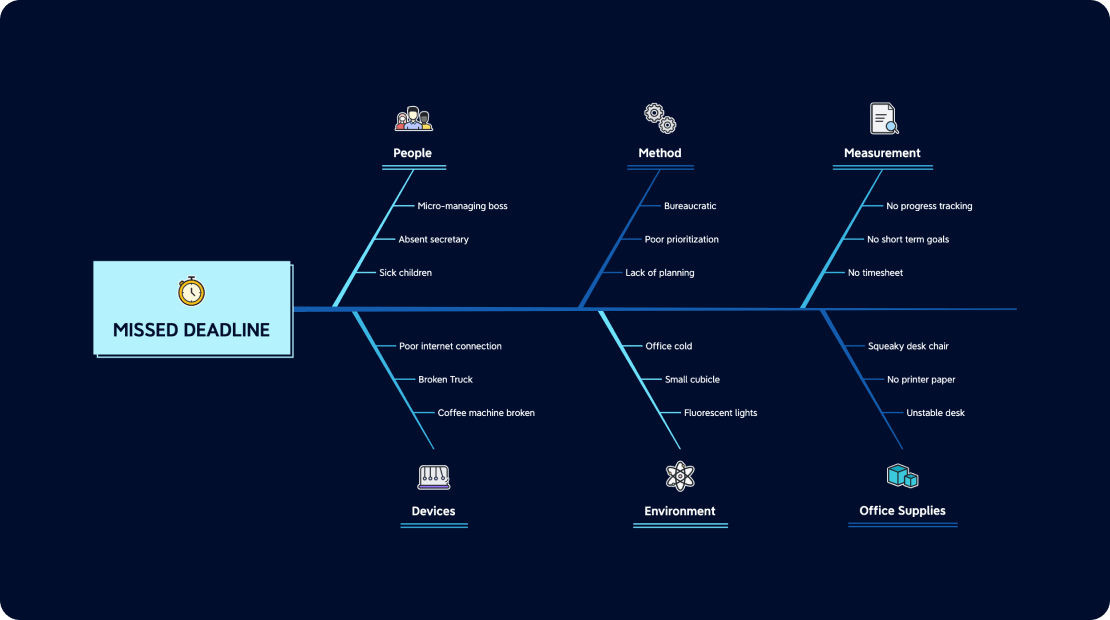
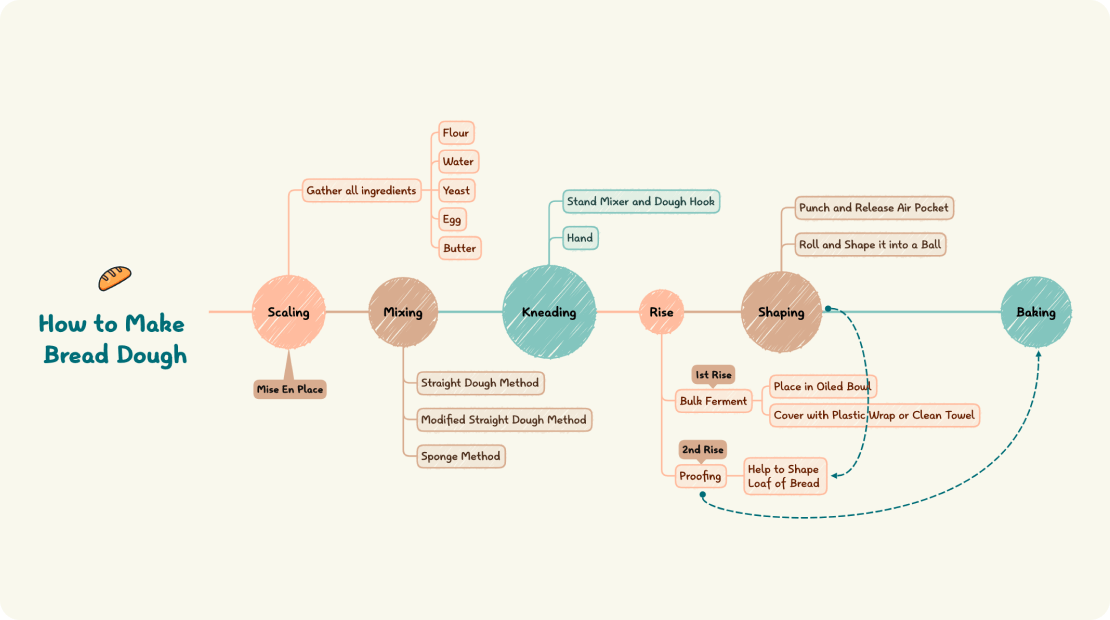
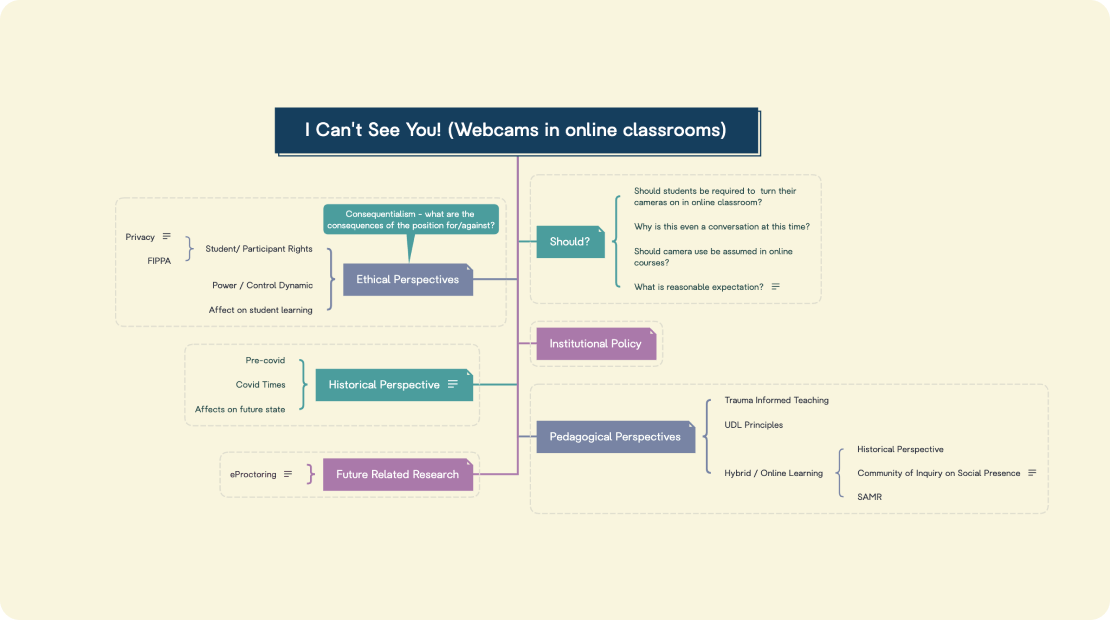
Mind Map
Logic Chart
Brace Map
Org Chart
Fishbone
Timeline
Tree Chart
Tree Table
Matrix
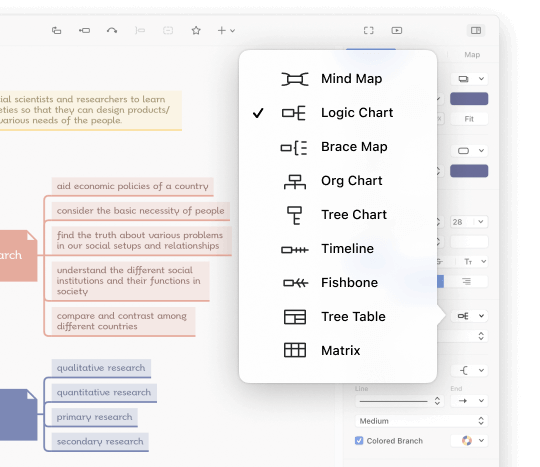
On-the-fly Structure Switching
Take it easy when choosing structures since you can switch to another one seamlessly with just a click away.
Exclusive Structure Combination
Xmind supports a combination of multiple structures on the same branch, it allows you to express different minds in one mind map.
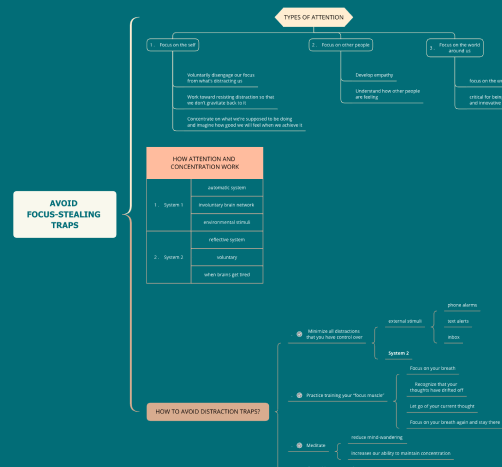
Essential Mind Toolbox
Intuitive tools made for organizing thoughts and adding further information to your mind map.
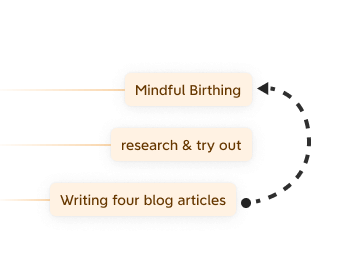
Relationship
Use Relationship to connect two relevant ideas with customizable line style and text description.
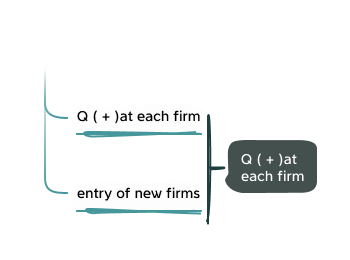
Summary
Add a conclusion or recap to a group of ideas easily using a Summary.
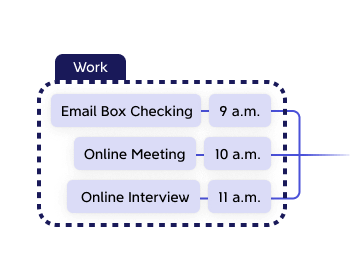
Boundary
A handy tool for highlighting topics that share similarities or mark special concepts.
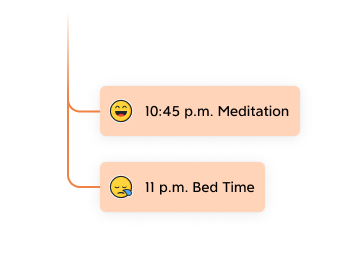
Markers
A great variety of neat icons for marking priorities, assignment of tasks, progress, etc. Display and customize marker names in legend.
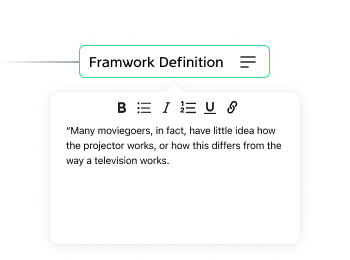
Notes
To reach conciseness, you can put additional text information into extendable notes and view them anytime you need.
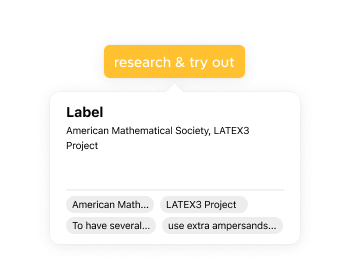
Label
Use labels for simple notation and categorization. Identify and highlight topics with labels using Navigation Panel.

Audio Notes
Input efficiency is the key to making mind maps. Set your hands free and easily record and attach audio recordings to any topics.
Capture Audio Notes in meetings, lectures to remember more.
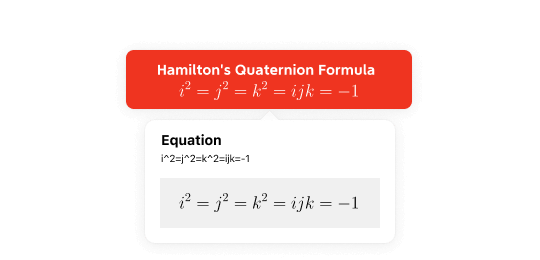
Math Equation
LaTeX command allows you to present mathematical and chemical formulas elegantly.
Input LaTeX math commands and get seamless live preview. Drag and drop your equation from one topic to another, and adjust its position and the size in the topic for better display.
Exquisite Themes and Style
Create mind maps that are uniquely your own and stand out with visually engaging mind maps in a breeze.
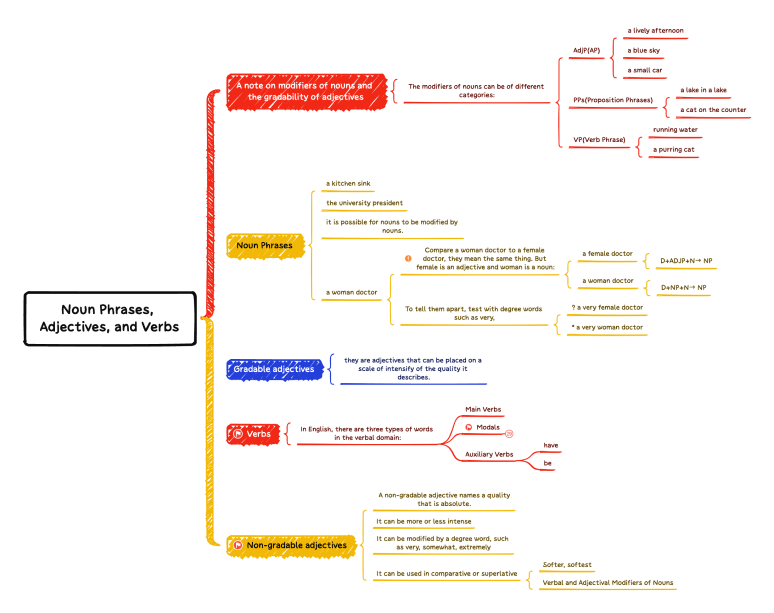
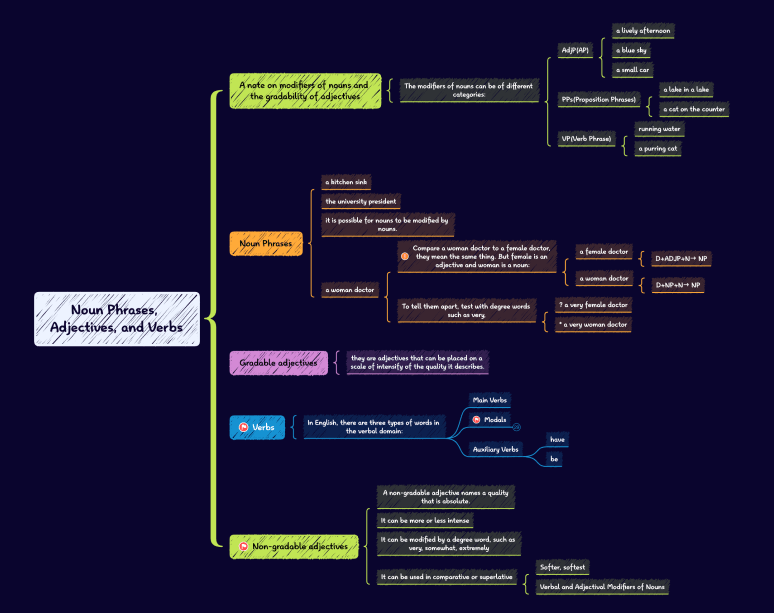
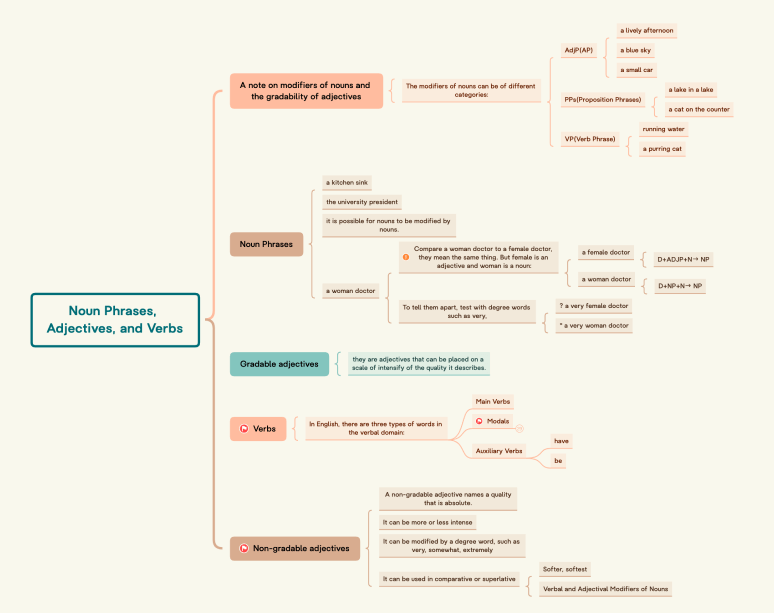
Colorful Branch
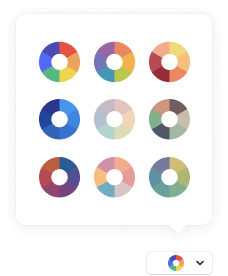
Color-coded branches can accelerate your thinking engine. We offer multiple color palettes for your choice. Apply different colors for each branch to make a visually rich map.
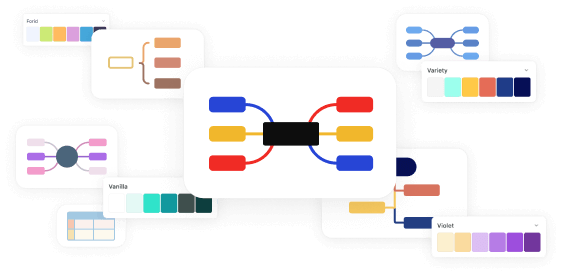
Color Theme
We’ve tuned every detail of structures and topics for each Skeleton and provide various balanced color palettes. Combine Skeletons and Color Themes your way, and you’re set to start mind mapping.
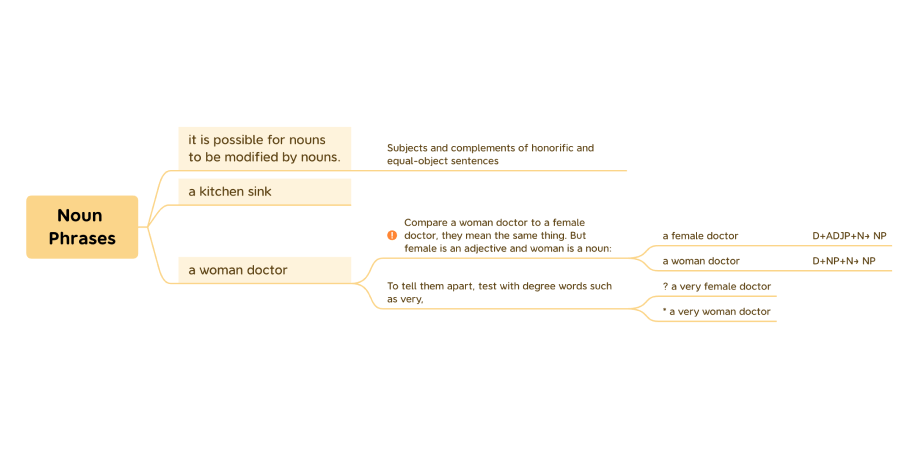

Map Style
Reduce the size and spacing of elements to make your map more compact or unify the width of topics of the same level to organize your map with one click.
Pitch Mode
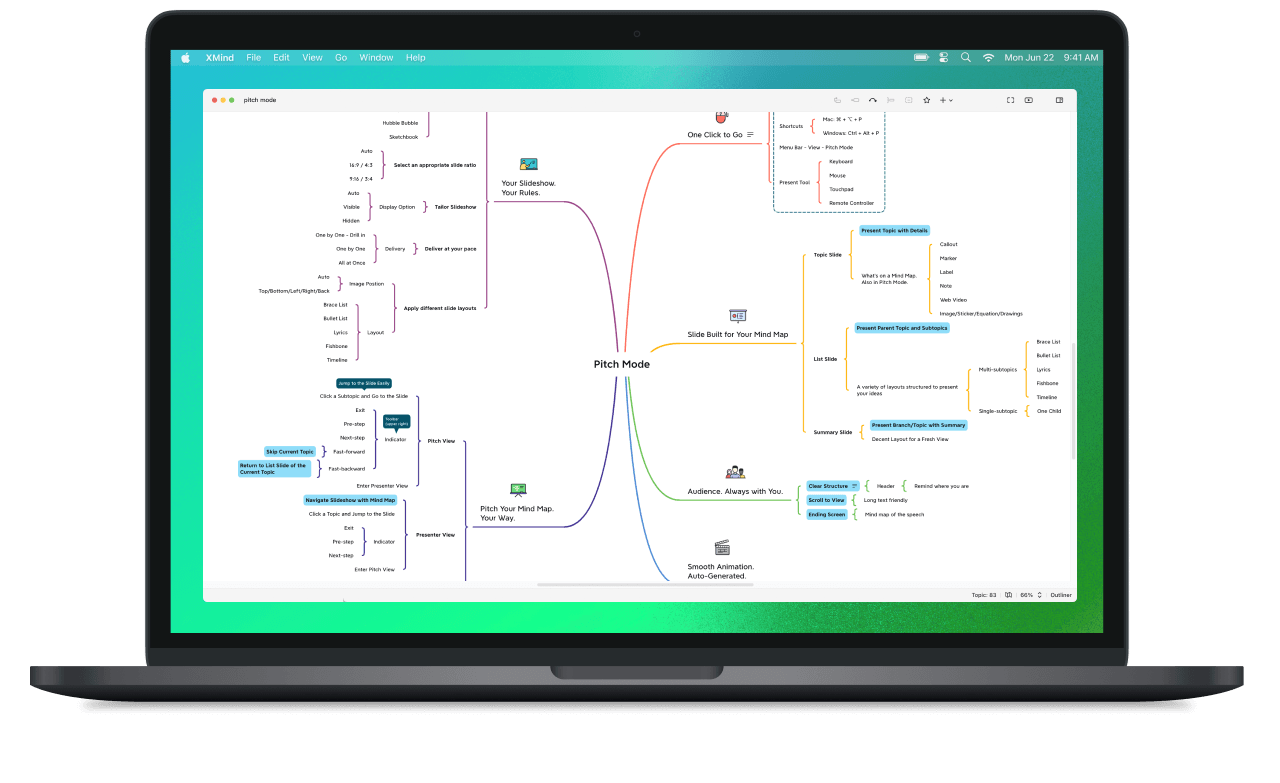
The content and structure of your mind map are perfectly tailored for a memorable presentation. Enjoy a state-of-the-art experience of presenting your ideas in Pitch Mode.
Learn moreZEN Mode
ZEN Mode helps declutter your thoughts and improve concentration.
Full-Screen
ZEN Mode is full-screen, in which all the extra panels will be hidden. This helps you stay focused on what matters most, your thoughts.
Multiple Appearances
Switch between different looks for immersive viewing and editing to boost your productivity. Switch to dark appearances to dim the lights and emphasize on the content more.
Today in ZEN
Today in ZEN is a timer that helps you to track your progress. It's also handy when training your memory, or brainstorming with a time limit.
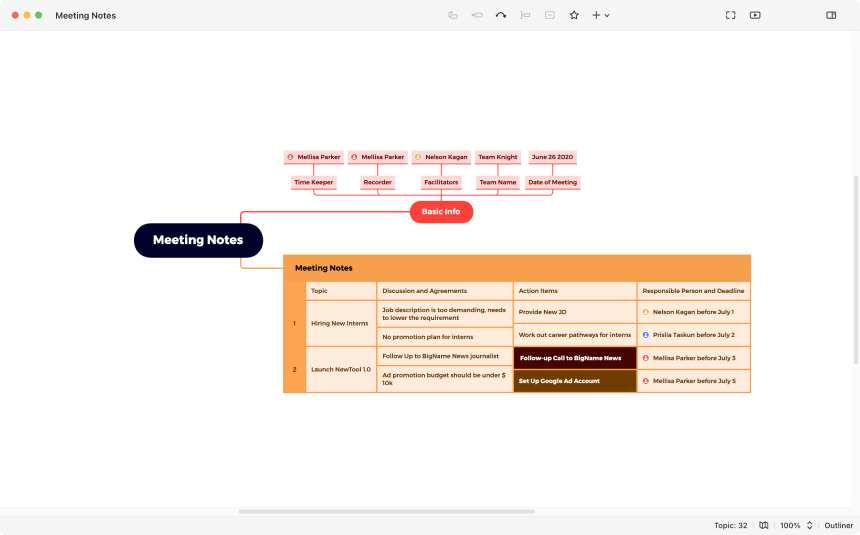
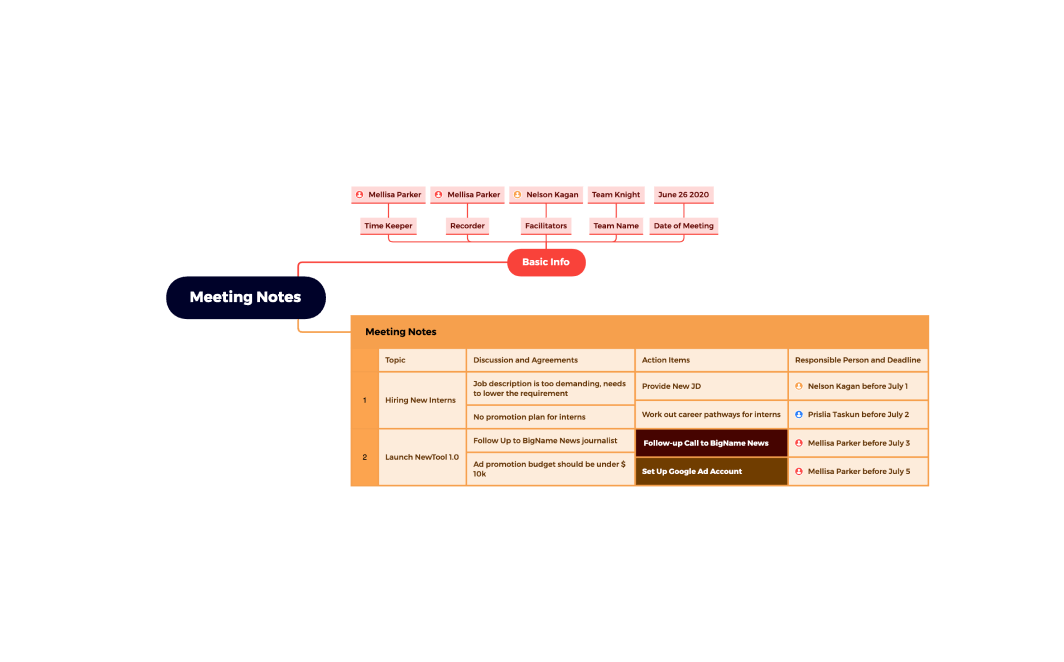


Outliner
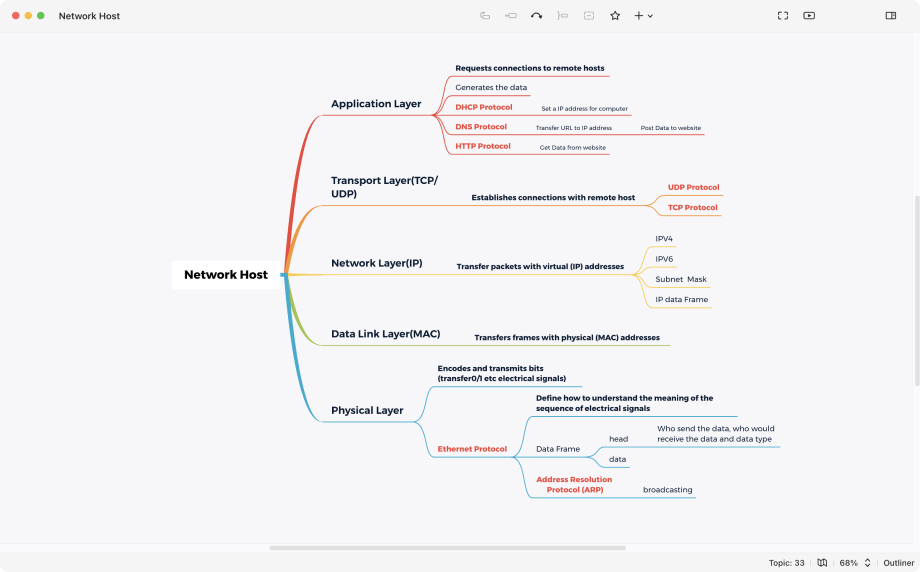
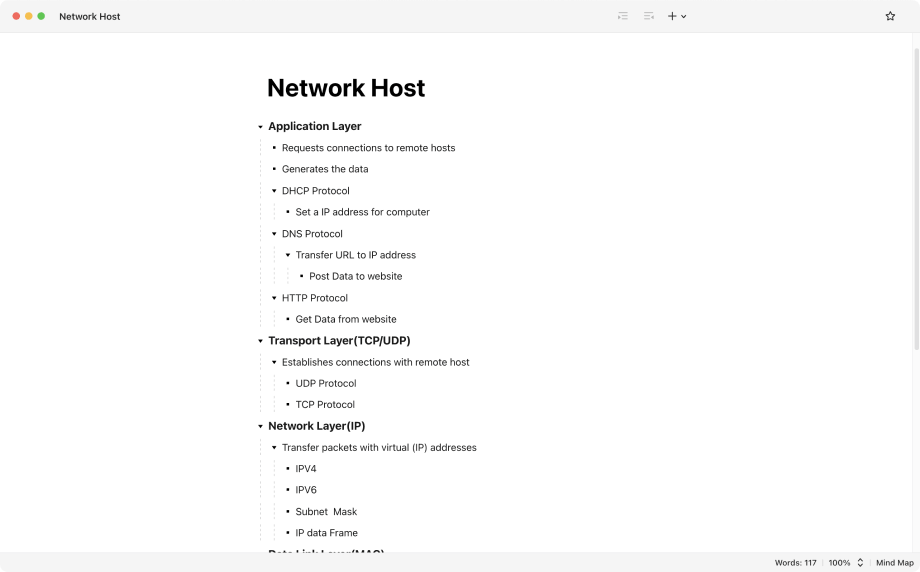
Switch your mind map into an outline with one click to get a more organized view. It is ideal for managing lists, organizing facts and ideas, and task management. Freely switch between outliner and mind map view with one click.
Other Key Features


Export
Supports PNG, PDF, SVG, Markdown, Word, Excel, PowerPoint (for Pitch Mode), and other useful formats like OPML and TextBundle.


Share
Share your mind map directly to E-mail, Facebook, Twitter, Pinterest, Blog, Evernote, Biggerplate, or via Xmind Share.
Import
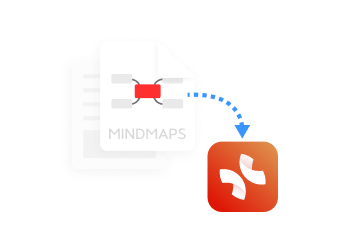
Here you can import Markdown, OPML, TextBundle, and almost all the mainstream mind map formats to Xmind.
Map Shot
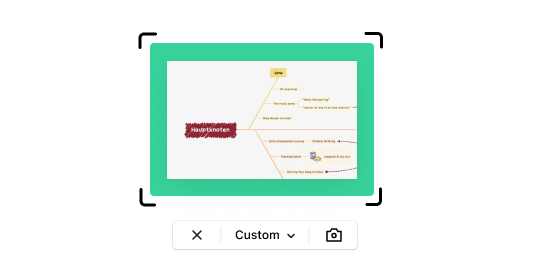
Easily capture any part of your map and adjust the format for displaying and viewing purposes.
Topic Link
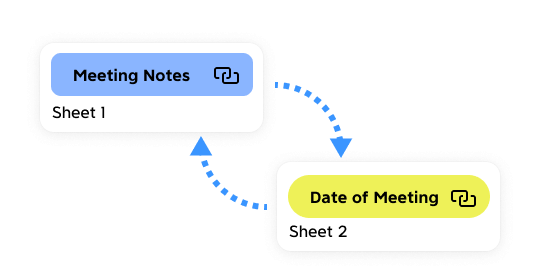
You can build bi-directional links between any two topics and jump from one topic to another with a click.
Start Mind Mapping Today
Try Xmind for Free. Start sparking creativity and boosting efficiency right away.


7-day money back guarantee